Get music onto
your phone.
Three steps to your first tape.
Get music.
A music file is a song saved on a device, like a photo. MP3 is one common type, used as an example in the illustrations below. Type Four plays music files from your phone.
Using a streaming app?Download music online or copy it from a CD. Already have music files? Go to step 2.
Download online
Bandcamp, Qobuz or an artist’s website
Buy a download from Bandcamp or the Qobuz store, or download from an artist’s website. You can use your phone or computer.
- 1
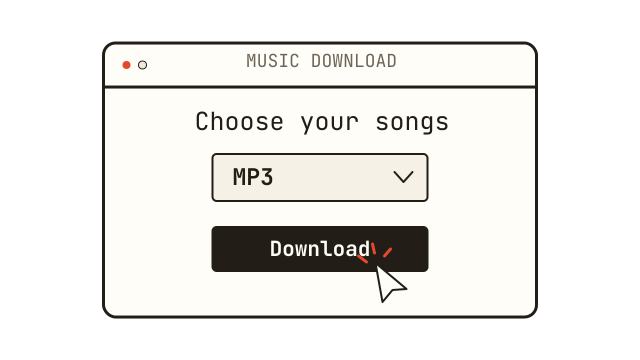
Download
Open the store’s download page or the link in your receipt. Choose the audio format and quality you prefer, then download the songs.
- 2
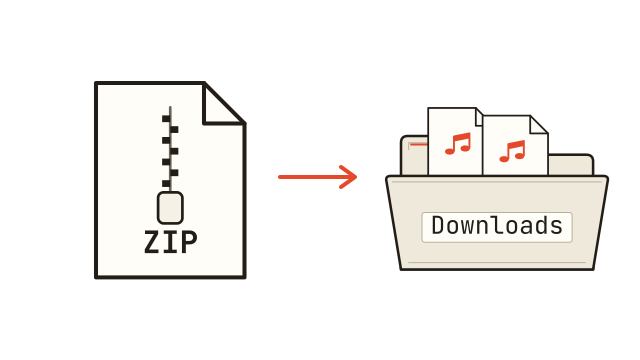
Open the files
Find the download in Files or My Files, usually in Downloads. If it’s a ZIP, open it to unpack the songs; on Android, choose Extract if asked.
- 3
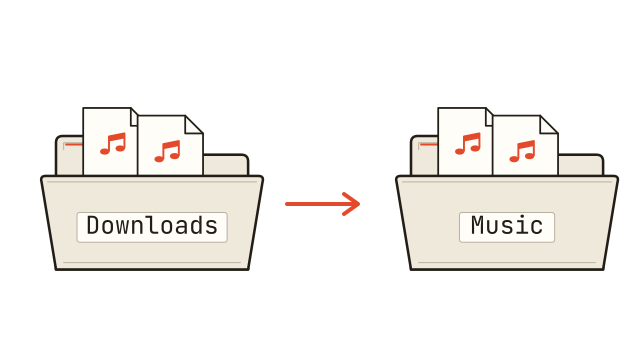
Keep them together
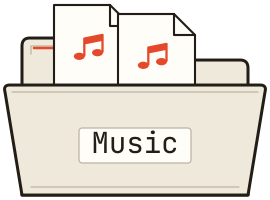
Keep the songs in a folder such as Music so they’re easy to find. Create one if needed.
Downloaded straight to your phone? Go to step 3 and make a tape.
or
Copy from CD
You’ll need a computer and a CD drive
- 1
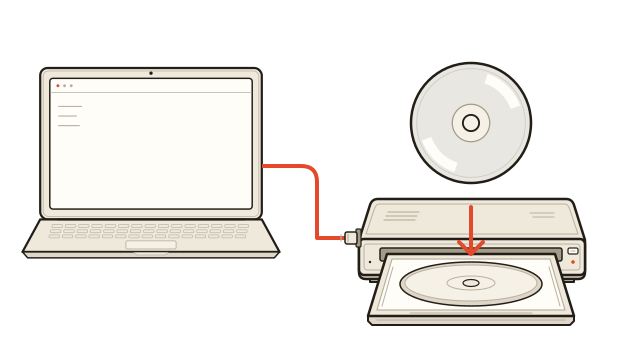
Insert the CD
Put the CD into your computer’s built-in or USB CD drive. Open Windows Media Player on Windows or Music on a Mac.
- 2
Choose a format
Windows: choose your preferred format in Rip settings → Format.
Mac: choose your preferred encoder in Music’s Import Settings.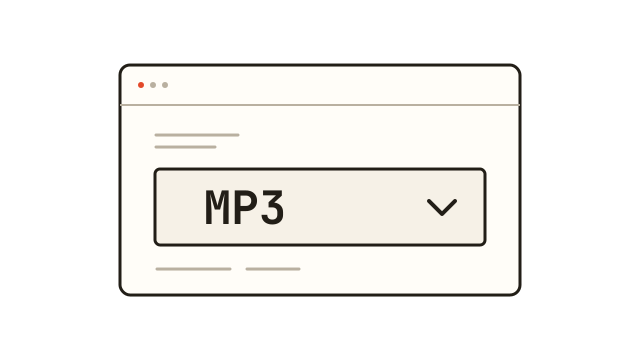
- 3
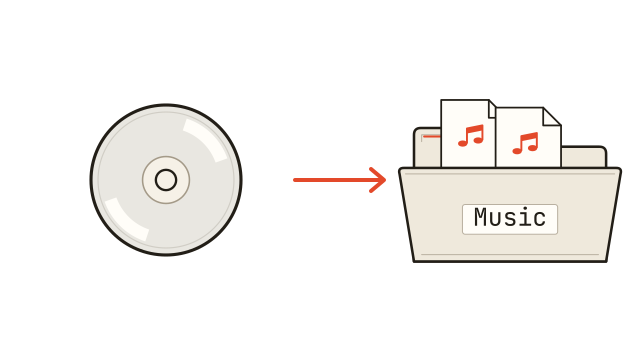
Copy the songs
Choose Rip CD on Windows or Import CD on a Mac. Wait for it to finish before ejecting the CD. Your songs are now music files on your computer.
For the full steps: Windows help · Mac help
Copy to your phone.
If your music is on a computer, choose either way to copy it to your phone. Already on your phone? Go to step 3.
Use a USB cable
Copy directly by cable · Usually faster
- 1
Connect
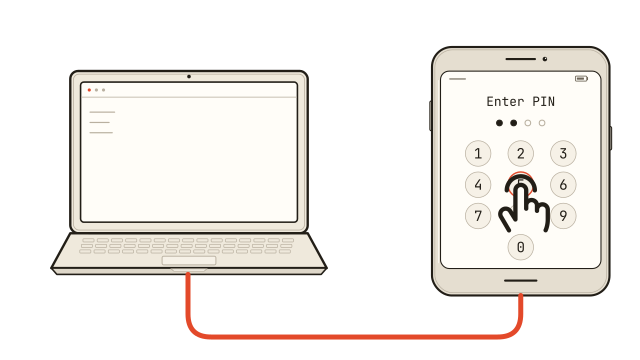
Unlock your phone. Connect it to your computer with a USB data cable.
- 2
Allow transfers
Android: tap the USB notification and choose File transfer.
iPhone: tap Trust if asked and enter your passcode.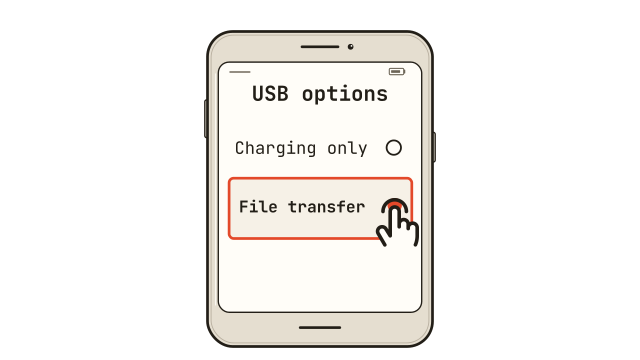
- 3
Copy the songs
Use the file-transfer app for your phone and computer (see below) to copy the songs. Wait for the copy to finish, eject if offered, then unplug.
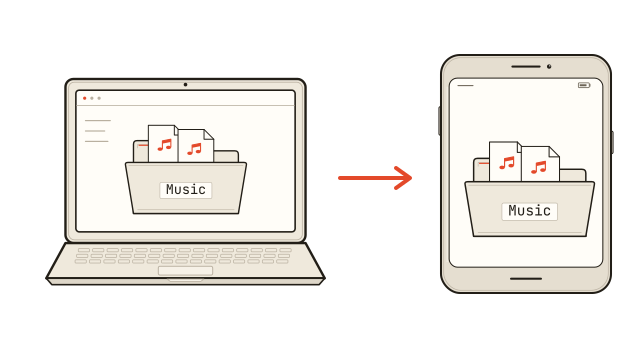
Android: use File Explorer on Windows, Files on Chromebook, or an app such as OpenMTP on a Mac. Copy into a folder such as Music.
iPhone: use Finder on a Mac or Apple Devices on Windows. In the Files tab, choose an app that supports file sharing and copy the songs into it. The illustrations above show Android.
or
Use a cloud drive
Copy via an online cloud drive · Usually slower
- 1
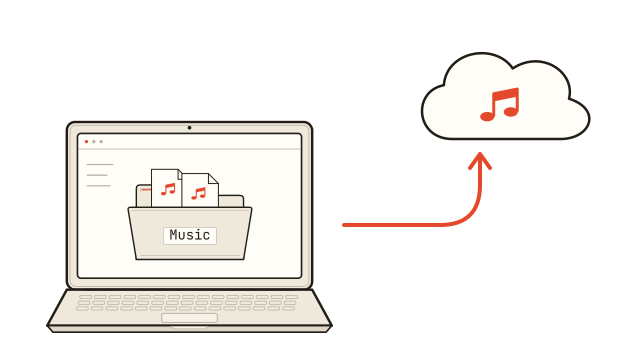
Upload
Upload the songs to your cloud drive, such as Google Drive, Dropbox or OneDrive. For iPhone, iCloud Drive is another option.
- 2
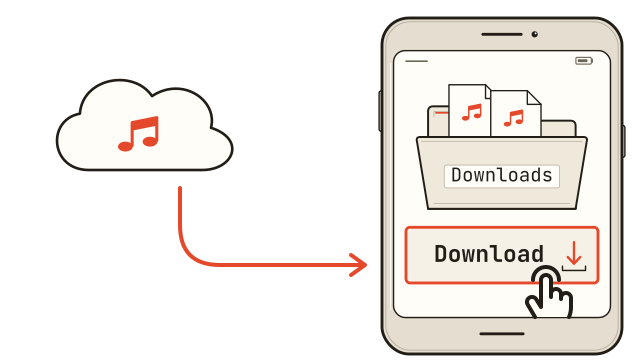
Download
Open the same cloud drive on your phone. Use its file or share menu to Download, Save or Save to Files. Button names vary by app.
- 3
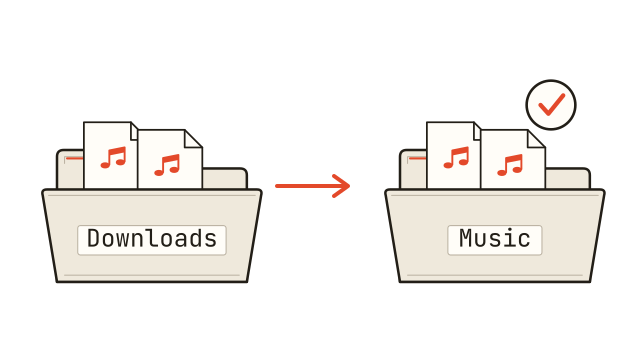
Keep a local copy
Find the saved songs in Files or My Files. Keep them together in a folder. On iPhone, save under On My iPhone or choose Keep Downloaded for files in iCloud Drive.
Make a tape.
On Android, open Type Four, create an album tape or mixtape, and choose your songs.
New songs may take a moment to appear. Need help?
Questions?
Can I use Spotify or Apple Music downloads?
Downloads from streaming subscriptions stay inside those apps. Type Four needs separate music files, such as MP3s. Download these from a music store or artist website that offers them.
What is a ZIP file?
A ZIP bundles several files into one download. Open it in Files or My Files. On Android, choose Extract if asked; on iPhone, tap the ZIP to unpack it. The songs appear in a new folder. Use those songs, not the ZIP.
Do the songs have to be in the Music folder?
No. Music is just a suggested folder name to keep your songs together; you can create one if needed. On Android, Type Four can find music in other folders too. On iPhone, a folder in Files is separate from the Apple Music library.
Why isn’t my music showing up?
Check that the download or copy has finished and unpack any ZIPs. On Android, allow a little time for the phone to find the songs. In Settings → Apps → Type Four → Permissions, allow access to music and audio. Names vary by phone.
Why is one song missing?
Clear any search text and check the filters in Type Four. Check that the file downloaded completely and is an audio file. Changing a filename to end in .mp3 does not turn it into an MP3.
My computer can’t see my phone
Unlock your phone and use a cable that supports data, not just charging. On Android, select File transfer in the USB notification; on a Mac, use an Android file-transfer app such as OpenMTP. On iPhone, accept Trust This Computer if asked, then open Finder on a Mac or Apple Devices on Windows. iPhone file sharing requires an app that supports it.
Which cloud drive can I use?
Use a service that lets you save files to your phone, such as Google Drive, Dropbox or OneDrive. On iPhone, you can also use iCloud Drive in Files. Sign in to the same account on both devices. Download or save the music to your phone’s files; making it available offline inside the cloud app is not always the same thing. Dropbox may call this Export. Button names and save locations vary by app.
Can I delete the files after making a tape?
Leave the music files on your phone. Type Four needs them to play your tapes. Keep a backup on a computer or in cloud storage in case you lose or replace your phone.
Can I copy music over local Wi-Fi?
Yes. An app such as LocalSend can send music directly between your computer and phone, without uploading it to a cloud drive. Install it on both devices and connect them to the same Wi-Fi network. Send the songs, accept them on your phone, then open the receiving app’s save location. On iPhone, use Save to Files if needed. Speed depends on your local network.
Still stuck? Ask us for help.